Prepare the brief
Start with a concrete subject and a destination such as a document cover, board, or campaign record.
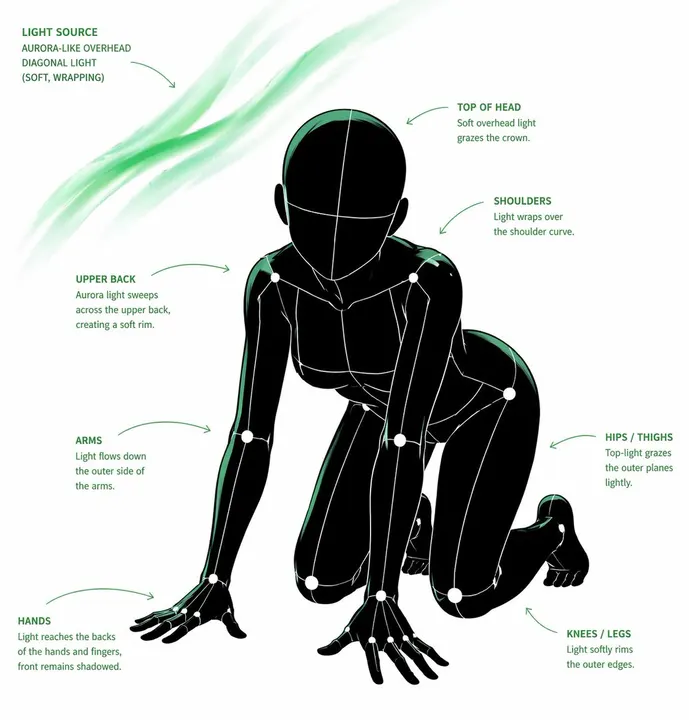
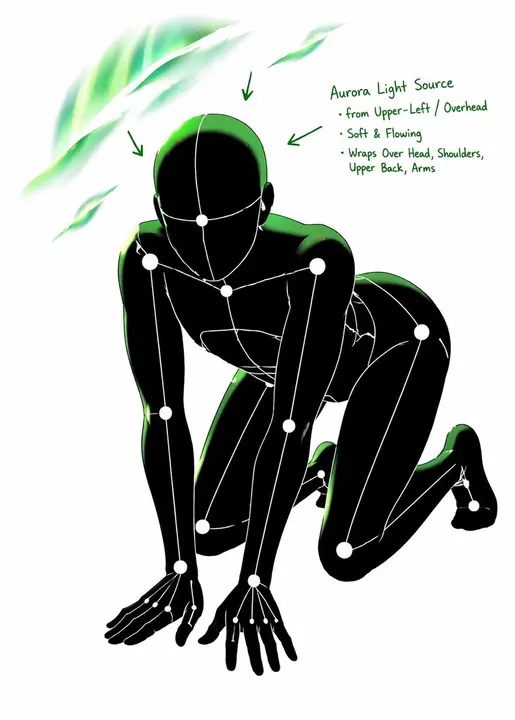
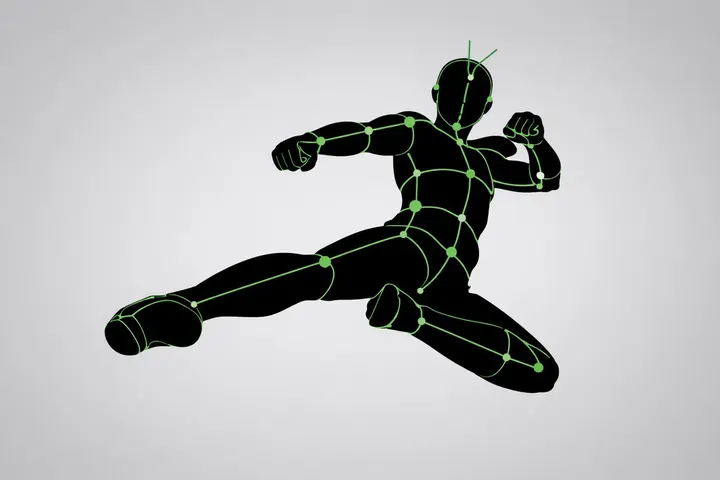
Pose and lighting analysis sheet. Transform your reference image using this visual style and composition.
This is an editing template. Attach a reference image before running it.
Template inputs
- Changes and details (optional)
- What should change or stay the same?
Suggested settings
| Operation | edit |
|---|---|
| Aspect ratio | 1:1 |
| Quality | high |
| Resolution | 2K |
| Text | Generated text is part of the image; proofread it. |
| Available surfaces | document, table, whiteboard |
Use this template in Kition
- Open the image template picker from a supported document, table, or Whiteboard image surface.
- Search for “Pose and lighting analysis sheet” and compare the preview with this example. The catalog ID is
gpt-image-2-case-80, version 1.0.0. - Attach the reference image and describe the changes to make.
- Choose an image-capable service, check the available dimensions and usage cost, then generate one candidate.
- Review the result, save the useful image into the workspace, and retain the brief with the output.
Review the output
Compare the output to the original brief, inspect text and fine details, and save only a candidate that fits the intended use.
Use a table record to track the brief, candidate image, owner, and review status. Insert the selected asset into a document for context, or use Design Studio when the headline needs to remain editable.
Source and limitations
Preview examples and adapted templates originate from the credited MIT-licensed library. They illustrate a visual direction and do not promise identical output. Kition requires a configured image service; model requests may consume provider usage or Cloud credits.
Read the full source licenseA generated image is a raster asset. Rendering a table, document, or interface inside the image does not create a working table, document, or app.